[PHP Vulnerability Fix] Server Migration to the 2026 Latest Native WordPress on AWS Lightsail, Custom Tweaks, and Google Integration Testing Record
 サイト管理者
2026 Latest Native Lightsail Environment and Network Configuration
Even before this PHP vulnerability blew up, I kept getting endless alerts saying Bitnami is deprecated and I need to migrate. But hey, it was too much of a hassle, so I just ignored them. Now, this PHP vulnerability issue has triggered global hacking sprees and massive data leaks. Damn, alright, time to finally handle this. So, instead of the old-school Bitnami setup that used to be the meta, I migrated based on the 2026 current standard: "AWS Lightsail Native WordPress (Non-Bitnami)".
Honestly, we don't have many options anyway, so it's pretty straightforward.
Creating the Blueprint Instance
Sorry, the screenshots are in Japanese.
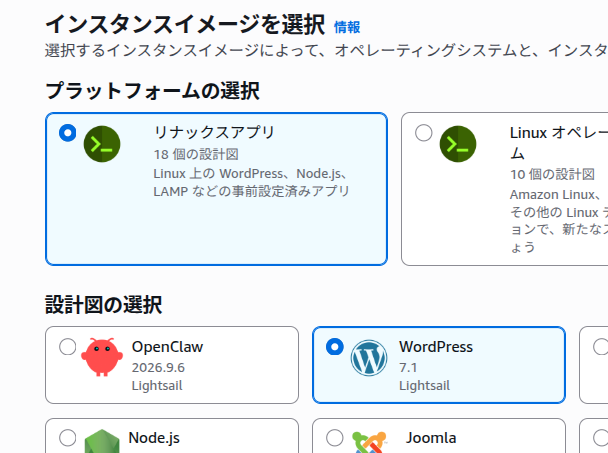
Leaving it on default settings is fine, but make sure to select Lightsail here instead of Bitnami.
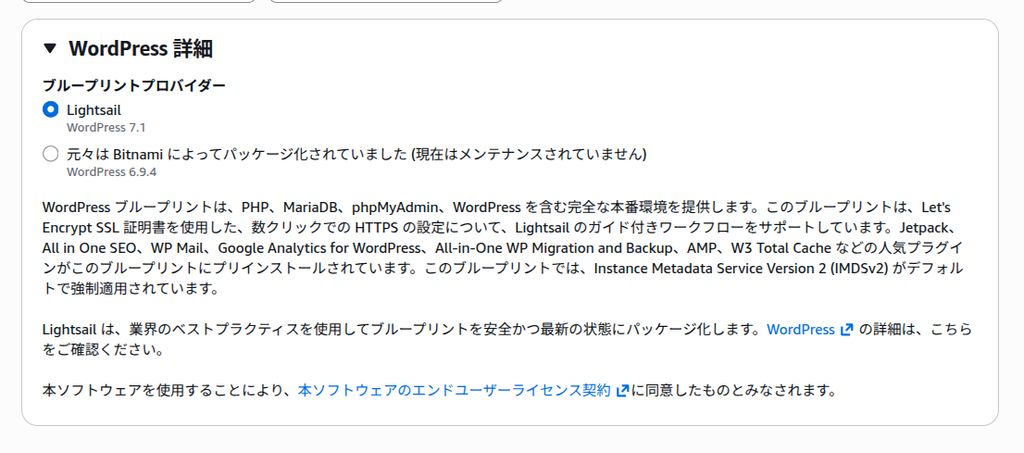
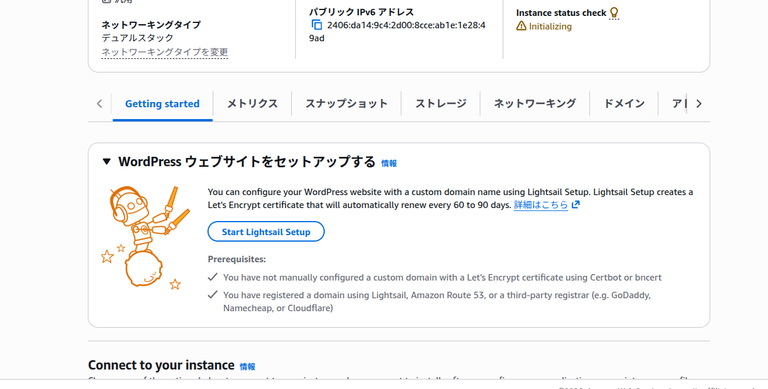
The moment the instance is spinning up, the web server is already running, so you can access it instantly via the public IP address.
Creating and Assigning a Static IP Address
Go to the Lightsail console, create a new "Static IP address," and attach it to your target WordPress instance.
Updating the Web Server Domain Address in DNS
Head over to the Route 53 console, and update the A record for your custom domain (the-world-star.com) to point to the static IP address you just created (e.g., 175.41.248.22).
Next, grab your Lightsail "Public IPv6 address" (the one ending in 49ad) and register it as a brand new AAAA record.
I was already used to this part so I breezed right through it, but to be honest, this step might have been included somewhere inside the guided wizard anyway.
Setting up SSL
Time to handle HTTPS and SSL certificates.
Steps: Fire up the wizard in the Lightsail console and proceed to "Lightsail Setup."
- Step 1: Specify a third-party domain since my domain name was purchased through Onamae.com.
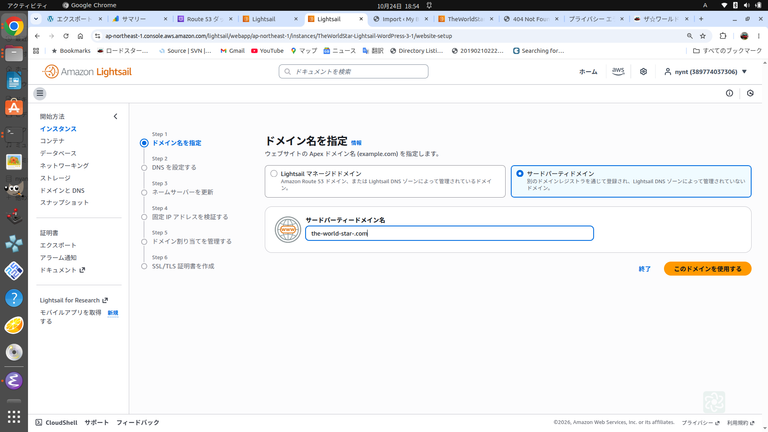
- Step 2: Choose "Third-party DNS" on the DNS configuration screen. My domain registrar is Onamae.com... though my actual DNS provider is Route 53, go figure.
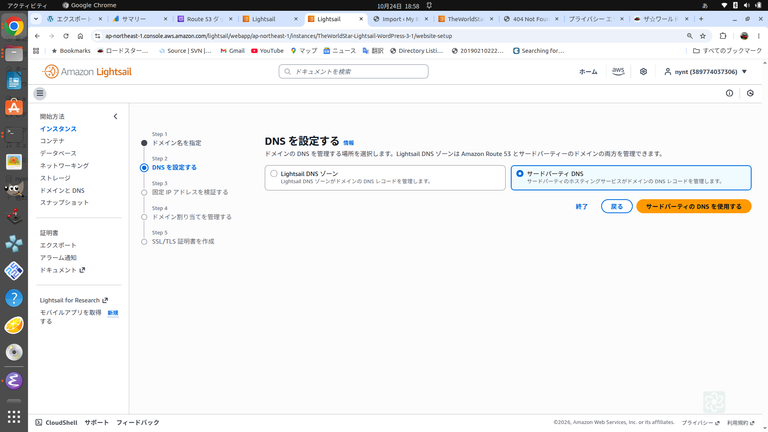
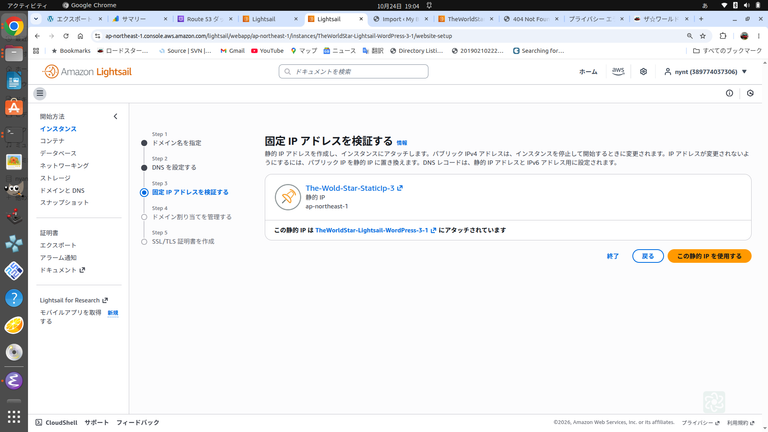
- Step 3-4: Follow the on-screen prompts to proceed with "Verify static IP address" and "Manage domain assignment."
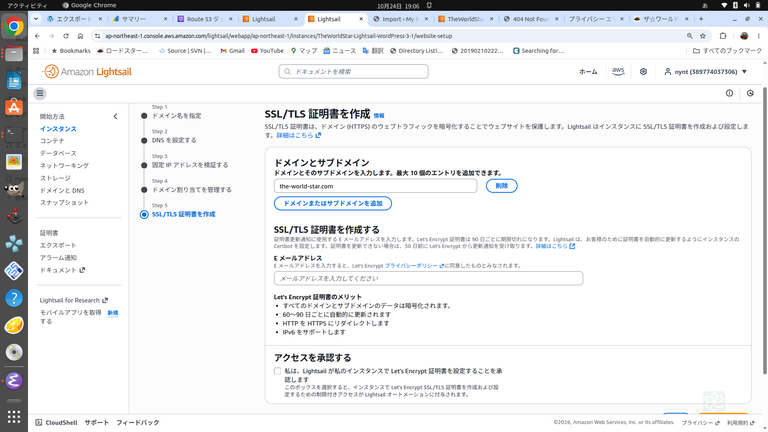
- Step 5: Punch in your email address, tick the confirmation checkbox, and hit "Create certificate."
2. Gotchas & Notes
- 2.1 IPv6 Verification: The wizard strictly enforces validation for both IPv4 and IPv6. You MUST register your Lightsail "Public IPv6 address" (ending in 49ad) as an AAAA record in Route 53 beforehand. If you skip this, the verification fails and locks you out.
- 2.2 Do NOT Create New DNS Zones: Don't let Lightsail spin up an empty "DNS Zone." It will completely wreck your existing Route 53 records (including your S3 assets pointing to static., etc.).
- 2.3 Fixing Past Artifacts (File exists) Errors: If you have leftover junk from manual CLI tasks, the automation script will choke and kill itself during final processing. If it bricks, SSH into your box, run this single line to purge the file, and then hit "Resume setup": sudo rm -f /usr/bin/certbot Please use this snippet with caution.
I got majorly stuck here. The main culprit was blindly following Gemini's advice without double-checking anything... Gemini has no concept of outdated data, so once it fails, it tries to piece together its own knowledge base to force a solution, which just drags you straight into a rabbit hole. AI loves to hallucinate with legacy info, so keep your guard up. Honestly, the trick is to just strictly follow the native AWS Lightsail wizards and official help documentation.
Logging into the New Server
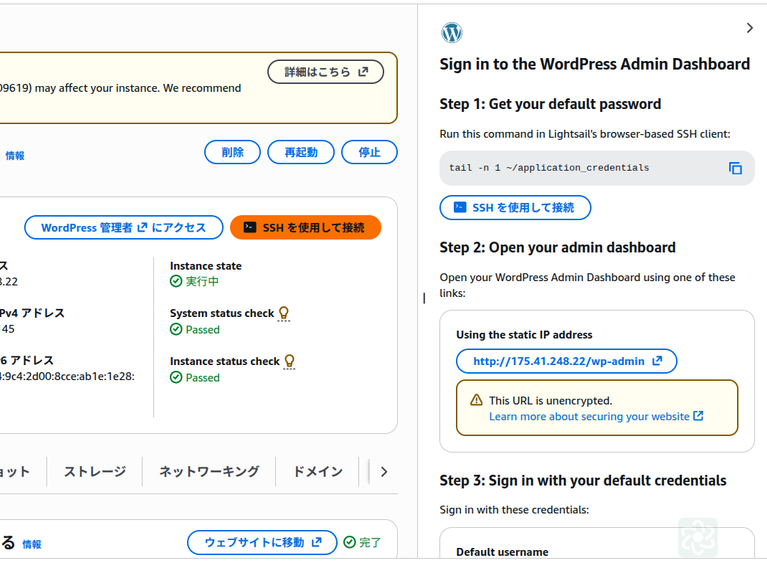
When you click "Access WordPress Admin," the right-hand panel pops open with configurations and steps. Just follow it verbatim and you're golden.
You can hit the dashboard via http://[IP_ADDRESS_OR_URL]/wp-admin/.
The default username is user. To grab your temporary password, click "Connect using SSH" to open the terminal and extract it with this command:
tail -n 1 ~/application_credentials
Data Import Workflow via All-in-One WP Migration
Once the foundation on the new server was fully configured, I took the 250MB+ backup archive exported from the old environment and used the "All-in-One WP Migration" plugin to pull off a complete import and full restoration onto the new instance.
Since my images live on S3, I didn't need to back them up—they work right out of the box. Just check the option to exclude the media library, and download your export file.
As for the import process, the plugin is already pre-installed on the new server side, so you literally just need to activate it. I bumped up the PHP upload limit to 512M and adjusted some timeout values on this end.
Pre-migration Prep: Bumping PHP Limits and Timeouts
To pull in a 250MB backup file without the server choking, we need to tweak php.ini on the new instance to raise the thresholds. On the native WordPress blueprint (running Debian), you can find the config file right here:
bash
/etc/php/8.2/apache2/php.ini
Please use this snippet with caution.
[Values to Tweak]
ini
upload_max_filesize = 512M
post_max_size = 512M
memory_limit = 512M
max_execution_time = 600
Please use this snippet with caution.
Once those values are saved, bounce Apache2 to apply the changes.
bash
sudo systemctl restart apache2
Please use this snippet with caution.
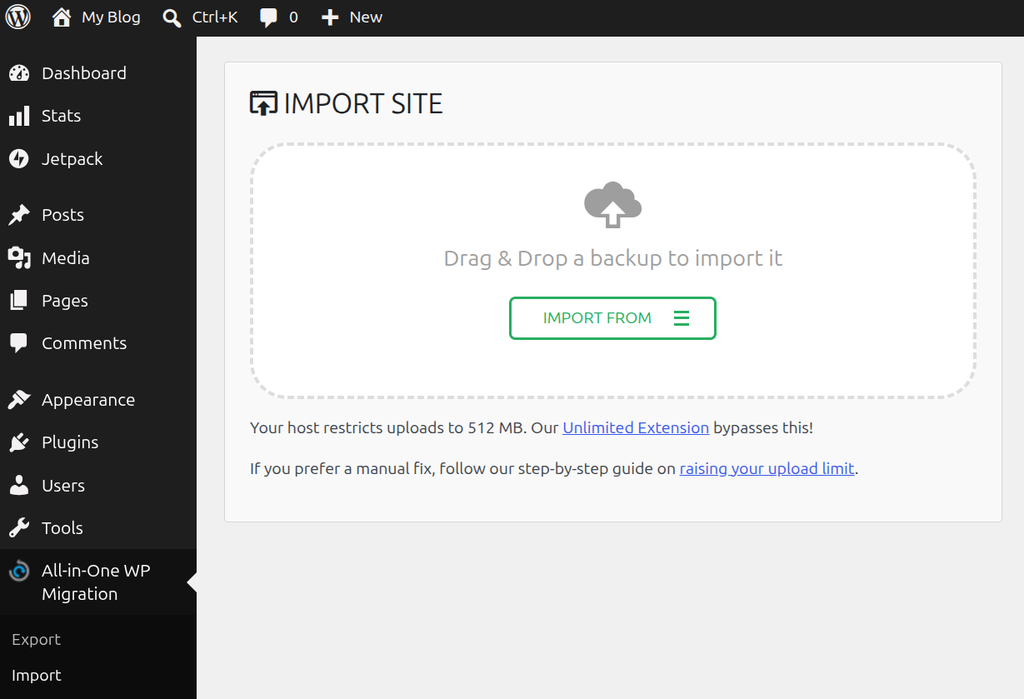
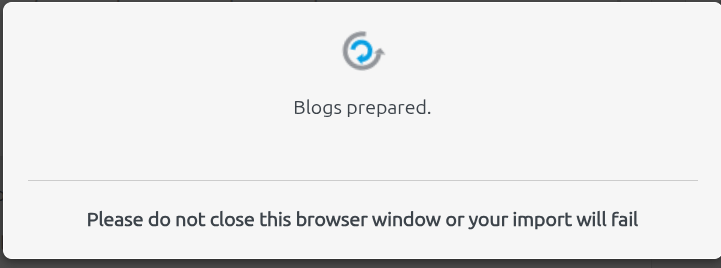
Hitting a Hard Freeze on "Blogs prepared."
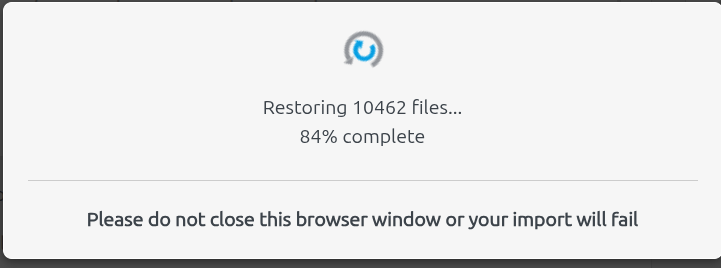
When I kicked off the import, the progress bar made it all the way to 100%, but then it got completely stuck on the "Blogs prepared." screen and refused to budge.
My first thought was a timeout issue, but checking the Apache error logs (/var/log/apache2/error.log) revealed a completely different culprit.
Logs:
[Sat Oct 24 08:34:10 2026] [php:error] [pid 17655:tid 17655] [client xxx.xxx.xxx.xxx:5886] PHP Fatal error: Trait "Automattic\Jetpack\Connection\Traits\WPCOM_REST_API_Proxy_Request" not found in /var/www/html/wp-content/plugins/jetpack/_inc/lib/core-api/wpcom-endpoints/class-wpcom-rest-api-v2-endpoint-email-editor-bootstrap.php on line 30, referer: http://xxx.xxx
Right at the tail end of the import processing, a Fatal error popped up due to corrupted Jetpack files contained inside the legacy backup archive, causing the whole restoration to completely lock up.
The Real Root Cause (Environment Mismatch & Complex Variables)
The reason this migration turned into a nightmare was a nasty combination of legacy code and environmental clashes:
- PHP Version Upgrade Incompatibility (PHP 8.1 → 8.2):
The outdated Jetpack codebase pulled from the old environment (running PHP 8.1) crashed hard against the stricter type checking and class loading protocols of the new environment (PHP 8.2), spitting out a Fatal error. - WP-CLI Getting Dragged Down Too:
I tried to play it safe and drop into CLI mode (WP-CLI) to clean-nuke the plugin, but because the Jetpack error fires off before the WordPress core can even finish bootstrapping, thewp plugincommand got caught in the crossfire and killed itself.
The Fix: Manually Forcing the Plugin Offline via SSH
Since WP-CLI was out of commission, I spun down the instance, purged it, rebuilt a clean environment, and dropped straight into an SSH session to physically rename the Jetpack plugin directory so the core system would completely bypass it on boot.
bash
user@stored-instance:~$ sudo mv /var/www/html/wp-content/plugins/jetpack /var/www/html/wp-content/plugins/jetpack_old
Please use this snippet with caution.
The exact moment that directory name changed, the system broke free from the fatal error loop, and the stalled import wizard in my browser instantly snapped back to life.
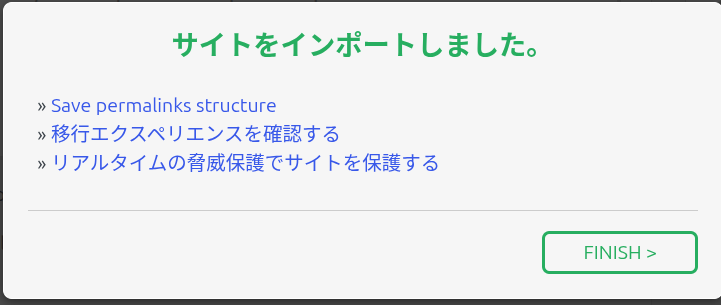
Import Complete
With the broken dependency out of the way, the file restoration ran flawlessly all the way through, and the import successfully completed.
Blindly running a data restoration on a new target environment without mapping out its exact runtime specs beforehand is a massive gamble that almost always ends in catastrophic manual rollbacks. Pivoting to wipe the board clean, tracking down the exact root of the Fatal error via log isolation, and resolving it directly on the disk was the only way to salvage this build.
Fixing Permalinks
Right after a clean migration like this, clicking any post or page usually throws a nasty 404 page-not-found error due to a routing desync. To fix this, just jump into the WordPress dashboard, head to "Settings ➡️ Permalinks," and smash that "Save Changes" button once. Doing this instantly flushes and rewrites the correct rewrite rules onto the new environment, bringing all your internal links back to life. During my previous test run under the web2.the-world-star.com staging domain, I had a brutal time changing all the hardcoded links back when moving to production—but now I realize just triggering that single permalink save handles the routing mapping flawlessly under the hood anyway.
At the same time, I checked the status of WP Offload Media (the plugin handling our S3 media storage integration). The new instance successfully picked up and maintained the connection to the S3 bucket out of the box, meaning all image pointers inside the media library carried over completely hassle-free.
Configuring WP Offload Media for S3 Image Assets
Now, this part actually required some real triage. I remember the dashboard throwing a warning along the lines of, "No configuration detected, we need to append values to your wp-config.php, tread lightly."
1. The Breakdown
Post-migration, newly uploaded images were pointing straight to local storage under wp-content/uploads/... instead of getting automatically offloaded onto the S3 static bucket.
2. The Cause
The fresh deployment had completely initialized the wp-config.php file, wiping out the AWS access keys and core plugin constants (AS3CF_SETTINGS) we had established on the old server.
3. The Fix
① Injecting Auth Tokens into wp-config.php
Open up /var/www/wp-config.php and append the configuration block right above the /* That's all, stop editing! Happy publishing. */ line:
php
define( 'AS3CF_SETTINGS', serialize( array(
    'provider' => 'aws',
    'access-key-id' => 'YOUR_AWS_ACCESS_KEY_ID',
    'secret-access-key' => 'YOUR_AWS_SECRET_ACCESS_KEY',
) ) );
② Recycling the Web Server
sudo systemctl restart apache2
4. Syncing Specific Files to S3
Since the free tier of the plugin limits bulk sync for legacy files, I paired up WP-CLI and AWS CLI to manually push just the 15 fresh images captured today (matching `Screenshot-from-2026-10-25*`).
Real-world Testing of Theme and Plugin Custom Tweaks
Over years of tweaking, I’ve baked several custom hacks directly into the theme and plugins to patch annoying gaps. I ran through each one on the new instance to verify how they hold up under the 2026 stack running the native WordPress 7.1 build.
The final verdict? Thanks to the seamless migration restoration working in perfect tandem with the epic vanilla theme updates, the site cleared every single benchmark—maintaining all ideal behaviors completely out of the box with zero manual refactoring required. All is ok.
① Enforcing Same-Category Bounds for "Previous/Next" Post Navigation (next-prev.php)
Back in the day, every time the theme updated, the post-footer navigation would start pulling random latest posts from completely different categories, forcing me to manually modify the function arguments inside the template file. However, spawning the file inside the web terminal for a quick audit revealed that the core filter argument is already set to true out of the box:
php
$in_same_term = apply_filters( 'lightning_prev_next_post_in_same_term', true );
Please use this snippet with caution.
This means the Lightning theme upstream has finally caught up to standard meta by defaulting post-navigation to look within the same taxonomy term. Checking the bottom of the latest live posts shows clean, beautiful context links pointing straight to past items in the exact same category without any noise leaking in.
② Filtering Sidebar "Recent Posts" by Category
The category scoping for the sidebar’s "Recent Posts" section, top category loop image layouts, and various filter hooks embedded in functions.php (like handling shortened archive layouts and auto-sanitizing Japanese URL slugs) are all firing smoothly without touching a single line of code, thanks to native feature updates and pristine configuration migration.
I combed through a bunch of other areas too, and all my custom code blocks made the jump intact. The migration script pretty much took care of the heavy lifting. Did I design it to be this robust? I honestly can't recall, but hey, it works exactly like the old server did, so I'm not going to complain.
Post-Migration Behavior for Google Ecosystem Tools (Site Kit / AdSense)
- Google Site Kit: Moving servers immediately invalidates your active auth tokens. Just jump into the plugin dashboard, go through the quick re-signin loop to re-authenticate, and your tracking metrics will start populating instantly.
- Google AdSense: Since ads are mapped via your root custom domain, layout scripts, and the root
ads.txtmapping, no configuration modifications are needed on your end once the DNS finishes propagating and the site serves up correctly.
Wrap Up
Migrating to the 2026-spec latest native Lightsail blueprint turned out to be an absolute win. From the initial database restoration all the way down to validation of custom adjustments, every single configuration transitioned cleanly with zero manual source refactoring.