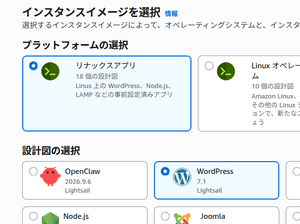
How to Fix the "Blogs Prepared." Freeze When Migrating WordPress from Bitnami to Native Lightsail
 Admin
Preparation: Expanding PHP Capacity Limits and Timeouts
To import a 250MB backup file, update the new server's php.ini file to increase the limits. For the native WordPress (Debian) setup, you can find the relevant file here:
bash
/etc/php/8.2/apache2/php.ini
Use code with caution.
[Changes to Make]
ini
upload_max_filesize = 512M
post_max_size = 512M
memory_limit = 512M
max_execution_time = 600
Use code with caution.
After updating the settings, restart Apache2 to apply the changes.
bash
sudo systemctl restart apache2
Use code with caution.
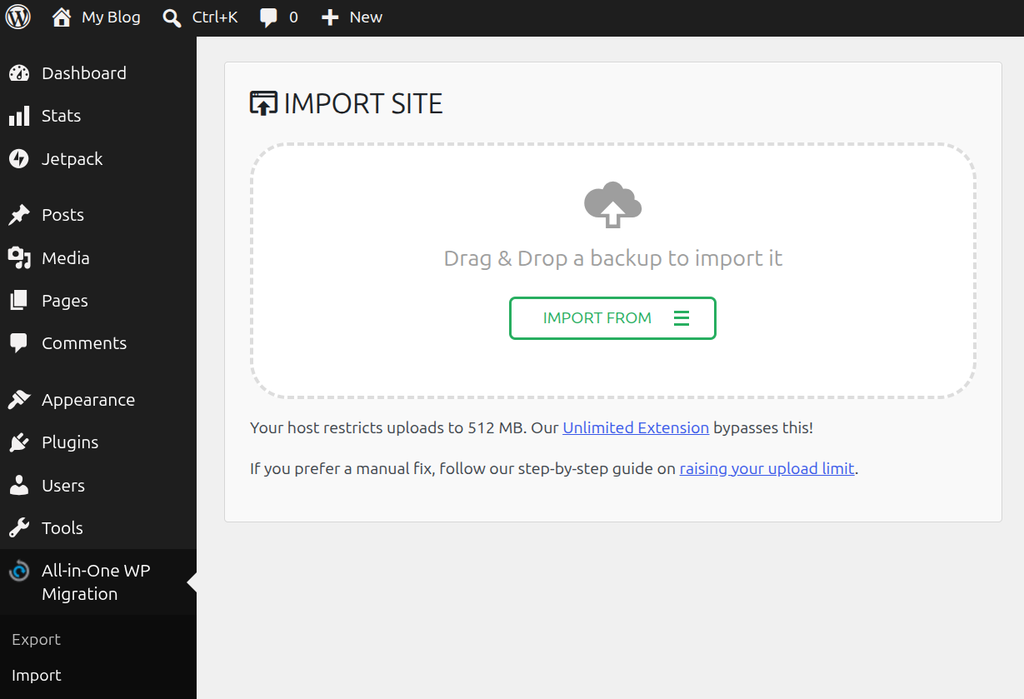
Frozen at "Blogs Prepared."—The Culprit Wasn't a Timeout
When I started the import, the progress bar reached 100%, but then it completely froze on the "Blogs prepared." screen and refused to budge.
📷 [Image to insert here: Screenshot of the import screen stuck on "Blogs prepared."]
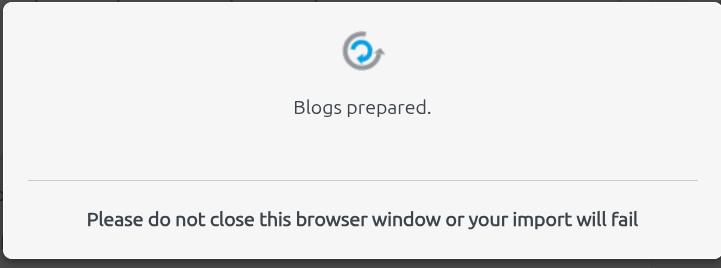
I initially suspected a timeout, but after checking the additional Apache error logs (/var/log/apache2/error.log), I discovered the real cause was entirely different.
text
[Sat Oct 24 08:34:10 2026] [php:error] [pid 17655:tid 17655] [client xxx.xxx.xxx.xxx:5886] PHP Fatal error: Trait "Automattic\Jetpack\Connection\Traits\WPCOM_REST_API_Proxy_Request" not found in /var/www/html/wp-content/plugins/jetpack/_inc/lib/core-api/wpcom-endpoints/class-wpcom-rest-api-v2-endpoint-email-editor-bootstrap.php on line 30, referer: http://xxx.xxx
During the final stage of the import process, a fatal error caused by corrupted files in the Jetpack plugin included in the backup data brought the process to a complete halt.
The Real Root Cause (Contributing Factors)
This freeze and migration nightmare were caused by a combination of environmental mismatches and trial-and-error setbacks:
- Misunderstood Environment and Blind Command-Line Trials (The Main Cause):
Early in the migration, unsure whether the new environment used "Nginx" or "Apache," I blindly followed an AI chat session and rushed ahead, installing and configuring various things via the command line. This cluttered the internal configuration of the new environment, triggered errors, and caused the chat logs to bloat massively. The session itself became sluggish, leading to a complete operational breakdown—a major blunder. - Incompatibilities from PHP Version Upgrade (PHP 8.1 → 8.2):
Older Jetpack code brought over from the source environment (PHP 8.1) clashed with the stricter type-checking and class-loading specifications of the new environment (PHP 8.2), throwing a fatal error. - WP-CLI Getting Caught in the Crash:
I tried to safely disable the plugin via the command line (WP-CLI), but because the Jetpack error fired before the WordPress core could even initialize, even thewp plugincommand got dragged down and forced to terminate.
The Fix: Forcibly Disabling the Plugin via SSH to Break Through
After deleting the instance, recreating a clean environment from scratch, and starting over, I found that even WP-CLI wouldn't run. To work around this, I logged in via SSH and directly renamed the Jetpack plugin directory, physically preventing the system from loading it.
bash
user@stored-instance:~$ sudo mv /var/www/html/wp-content/plugins/jetpack /var/www/html/wp-content/plugins/jetpack_old
Use code with caution.
The moment I changed the directory name, the system was freed from the error, and the frozen browser import screen immediately sprang back to life.
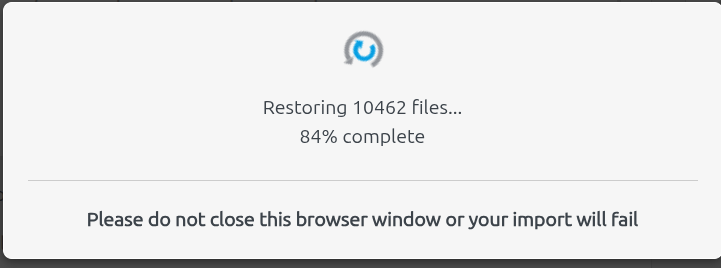
Import Completed Successfully
The file restoration ran smoothly to the very end, and the import completed successfully.
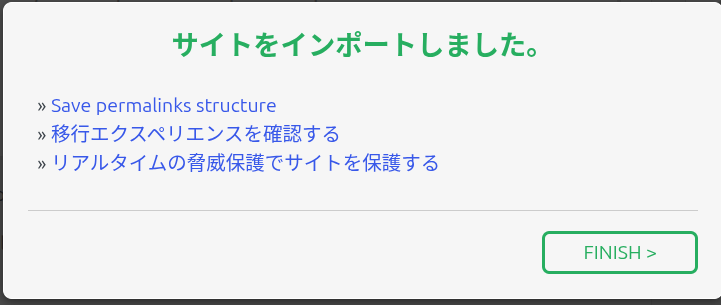
Proceeding with trial-and-error installations when the specifications of a new server environment are unclear is a recipe for setbacks and extreme risk.
Starting fresh with a clean environment, identifying the root cause of the error (the fatal error), and handling it physically proved to be the ultimate key to recovering from a total breakdown.