WordPress with AI Features Built-In
 Admin
AdminWordPress extensions now enable AI-powered Japanese proofreading and automatic English translation. It's incredibly easy to set up—just plug in your API key for Google AI or other providers. Combining this with a translation plugin significantly streamlines the process of building a multilingual site.
The editor also features predictive text completion, though it comes with limitations, such as not translating short sentences of 5 characters or less, or text inside tables. While some manual adjustments are still required, it drastically boosts overall workflow efficiency.
I was looking into auto-translating my posts with AI, and holy crap! Turns out you can bake AI features right into a newly upgraded WordPress site to handle everything from Japanese proofreading to English translation!
Let's dive right into the setup. A new Connectors menu has been added to the admin dashboard, so we'll configure it from there.
First, select the AI you want to use and install it. From this point on, you can just click through the setup guided by the on-screen prompts without getting lost.
* Note: Even as I'm writing this draft, the AI keeps suggesting the next chunk of text. I couldn't quite figure out how it works on mobile, but on a PC, hitting the TAB key instantly accepts the suggested wording.

For me, I'm going with Google, my absolute go-to!

First, get the plugin account linked up. Just follow the on-screen prompts to log in. It was my first time configuring Google AI, but since my phone is an Android and I already have a Google ID, the process was super smooth. All you really need is the API key that lets the WordPress PHP call the AI. Copy that, paste it into WordPress, and you're good to go. Man, we live in such a convenient world now. This is simple enough that even a beginner could get it running without stressing.
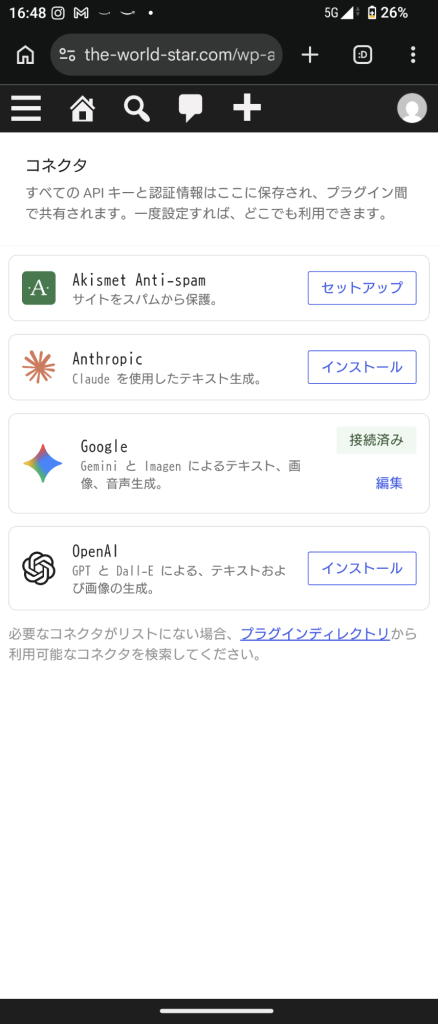
Once you finish clicking through the settings, you should land on a screen like this. Next, I opened up a post draft. Since my goal was to spin up an English version of the site, I hit "Create English Translation" via the Bogo plugin, opened up the new language page, and got to work. The original Japanese text gets copied over as the baseline, so when you open up the post properties sidebar, you'll see a handful of AI options pop up like this.
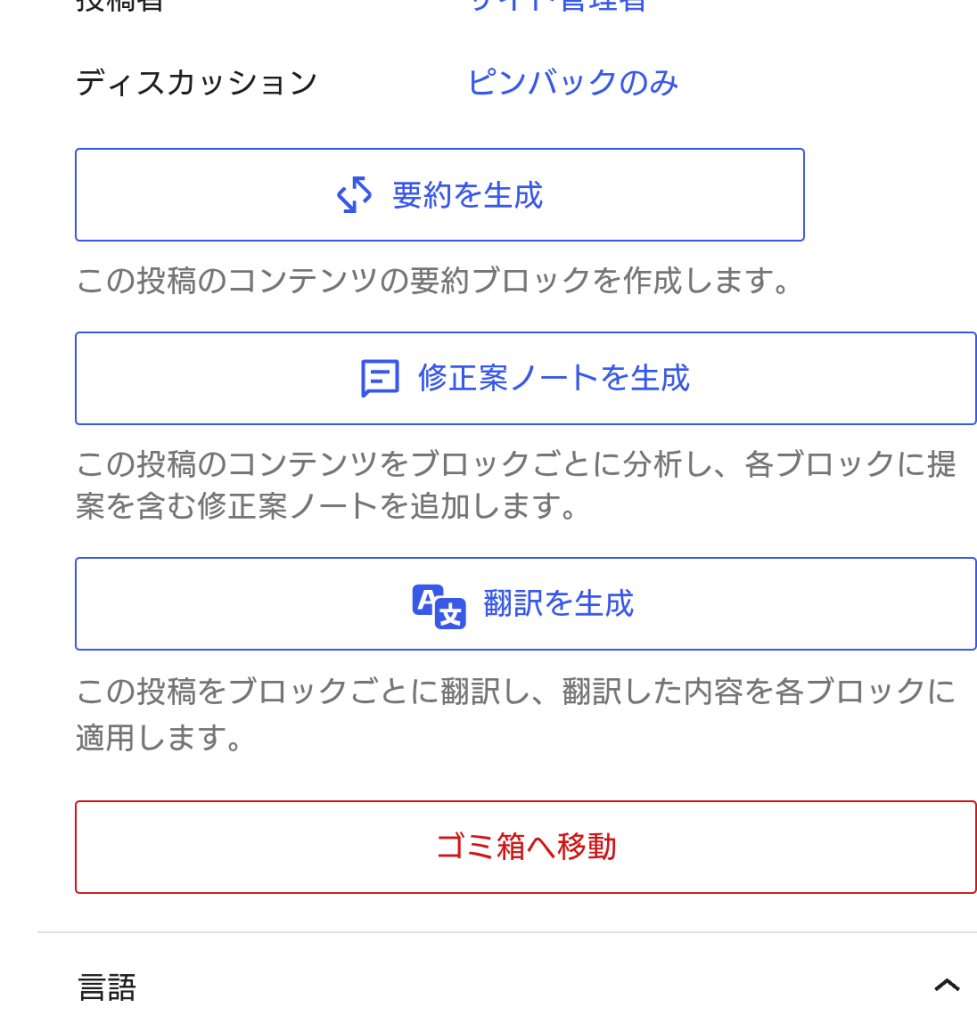
This time, I'm selecting "Generate Translation" to see how it goes. It takes a brief moment to process, but with just a single click, it spits out natural-sounding English in no time. This makes setting up a multilingual site feel incredibly accessible, even for beginners. Check this out...

Insane! AI combined with WordPress is absolutely insane! Even if you close out the post properties sidebar and just look at the main editor body while it processes, the text keeps converting automatically right before your eyes.
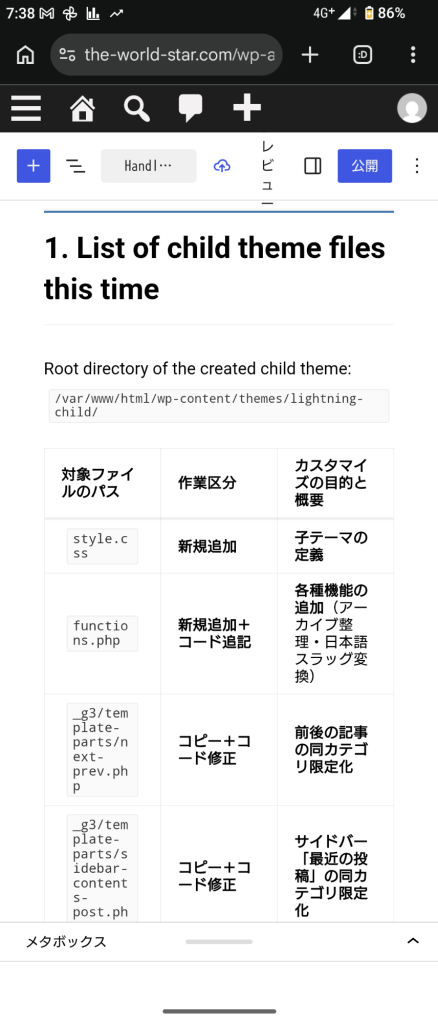
That being said, a few spots got left behind. A warning popped up stating that blocks with 5 characters or fewer won't be translated. On top of that, text inside tables completely ignored the translation. I tried hitting a retry-style trigger within the body editor, but no matter how many times I ran it, those sections wouldn't budge. Still, this is seriously impressive. What a time to be alive. Honestly, watching the words autocomplete dynamically as I type this is just mind-blowing. The only catch is that it doesn't actually analyze the content of the uploaded images; it just guesses the text flow and builds out the sentences on its own, which makes it a bit tricky to control. Down the road, though, it'll probably be able to read the images and auto-generate spot-on descriptions. It's only a matter of time. Once that happens, blogging will be a breeze for me, since my posts are basically just hands-on project logs built around photos.
Seriously, if I just type out the beginning of what I want to say, it predicts and writes out the rest. It's a massive time-saver!
Once I wrapped up the post, I asked it to generate a summary, and it whipped up the exact text block you see at the very top of this page. It even suggests tags—though it only came up with "AI" for this one...
That's all for now.